How To Copy From Right Click Disabled Websites

How To Copy From Right Click Disabled Websites

How To Copy From Right Click Disabled Websites
Copy-pasting somebody else works is very common. Though, very few people actually give the credit link or mention the source. Especially, in Blogging people copy each other content and increase plagiarism. Apart from all Auto-blogging tool, the most common form of copying a page is by selecting text > mouse to right-click and copy the content. Though in WordPress, we can easily disable this by using disable right click WordPress plugin. Though according to me right-click gives a bad user experience and for Bloggers, you can always fight such copy-paste blogger using Google DMCA.

Now for me, when I have to write a tutorial, I take information from the pages on the Internet and give proper credentials with the link in the post. Now, the problem which I have faced recently is many of these sites have right-click disabled and it’s pain to copy from these sites normally. So, here I have compiled a series of possible ways to copy content from those pages. FYI, many websites disable CTRL +C options to ensure better security from hackers and malicious sites.

Ways to copy text from Right-click Disabled pages:


Most of the bloggers and webmasters use JavaScript technique to disable right-click, to prevent scrapers sites from stealing their content.

Many times we often come to websites where we found contents useful like how-to, Guides and we copy it into worded or notepad. Generally, we select some text and then right-click to copy. But on Protected sites, a message box appears saying “Right-Click on this site is disabled. Hold Ctrl key and click on the link to open in new tab

But there are numerous way through one can copy contents from Right Click protected sites

  • By disabling browser JavaScript in browser
  • Using Proxy Sites
  • Using the source code of the site

Disabling JavaScript in Browsers [Google Chrome]


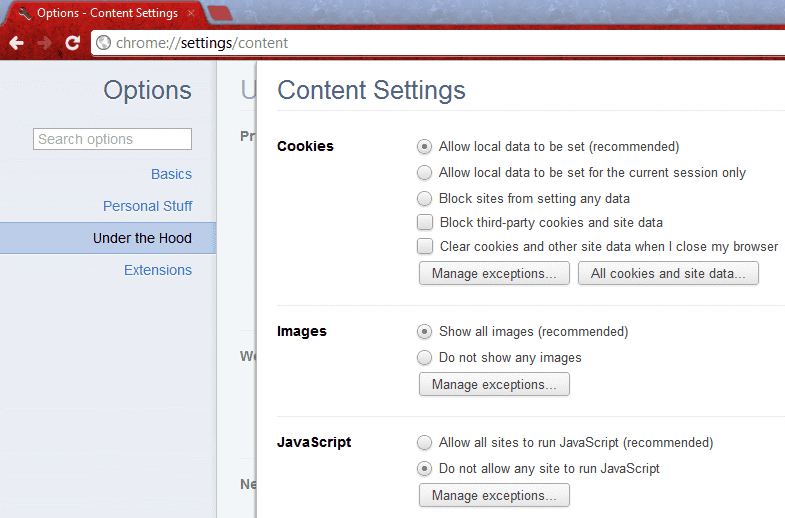
In the Chrome browser, you can quickly disable JavaScript by going to settings. See the screenshot for a better explanation:

chrome disable javascripts

  • Goto Setting >> UnderHood Tab >> Content Settings
  • or enter  chrome://settings/content
  • Then Select Do not allow any site to run JavaScript
Similarly, if you are using Firefox, you can remove the tick from the “Enable JavaScript” option.

Using Proxy Sites

There are many proxy sites, which let you disable JS while browsing. All you need to use those proxy sites, which offer such features and you can quickly use right-click on click disabled sites.


How To Copy From Right Click Disabled Websites

Through Viewing Source Code

If you have to copy the specific text content and you can take care of HTML tags, you can use browser view source options. All the major browser give an option to the source of the page, which you can access directly using the format below or by right click. Since right-click is out of the question here, we will simply open chrome browser and type: view-source: before the post URL Like
view-source:https://www.codetherush.in
    And find the paragraph or text you want to copy and then paste it into any text editor.

    Well, using this trick ethically or unethically is in user hand but for a normal blogger like me and you, this tip will certainly help. Do you use any other plugin or add-on to copy the content of pages with right click disabled? Do you also see this feature as bad user experience?
    How to Disable Copying Text On Blogger Blogs?

    How to Disable Copying Text On Blogger Blogs?

    How to Disable Copying Text On Blogger Blogs?
    How to Disable Copying Text On Blogger Blogs?
    Today, I would like my visitors to learn how to protect (Disable Copying Text) your hard work spend in creating and writing fresh articles on your website or blog by being stolen by some others.

    Copying the writing from your website and placing it elsewhere is common on the net. There are sites which often doesn’t make it possible for us to copy the content on the web pages. The content function is disabled from the site through the site admin so that you can protect the website. We might find how to implement an identical methodology pertaining to Blogger. This key is valid for almost any sites. This trick will probably disable (Ctrl+A) function to your site.
    Sometimes the trick may not be compatible with some old browsers. But, we will see how to make things more secure in my future posts.


    Steps to implement to Blogger (Disable Copying Text):

     
    1. Go to Dashboard Select the blog where you would like to implement the code


    2. Go to Layout Add a Gadget > Select “HTML/JavaScript gadget”


    3. Paste the following code in the box:


    <script src='demo-to-prevent-copy-paste-on-blogger_files/googleapis.js'></script>
    <script type='text/javascript'>
    if (typeof document.onselectstart!="undefined" ) {
    document.onselectstart=new Function ("return false" );
    } else {
    document.onmousedown=new Function ("return false" ); document.onmouseup=new Function ("return true" );
    }
    </script>

    4. You are done!!! Check out how it works.

    Note: The above code can also be placed between <head> & </head>
     

    Final Words: 

    So that’s the small and effective trick to protect your content from copycats. Soon we will write more articles to protect your content so Stay Tuned! Share this post with your friends and drop your views in comments till then Peace, Blessings and Happy Blessings.
    How To Remove Sora Templates Attribution Credit Without Redirecting

    How To Remove Sora Templates Attribution Credit Without Redirecting

    How To Remove Sora Templates Attribution Credit Without Redirecting


    Sora templates are one of the best blogger templates you can get for a cheap price or for free. It comes highly optimized, build with HTML5, mobile responsive and intuitive interface. Each Sora template comes with two option, either to download it for free and use it with the attribution link or to purchase it for a very cheap price.
    If you are low on budget and looking to use Sora template for your new blog without purchasing it and without having Sora attribution link in your blog, This tutorial will teach you how you can overcome this problem. Most people try to remove this attribution credit from the HTML view of their blog but found their blog being redirected to another page, This article will help you to remove the attribution link from all free Sora templates without redirecting to another page.
    Note: Make sure to backup your templates in case something goes wrong, you can easily go to the backup.
    Follow the technique below exactly to remove the attribute/credits easily
    First Step:

    Log in to your Blogger dashboard and click on "Templates" then click on "Edit HTML"
    Click anywhere inside the HTML codes and Press "CNTRL F" on your computer to open a finder (search) box
    Search for "<script type='text/javascript'>" in your HTML code
    Under this code, you will find the following line (in the picture)


    disable-soratemplates-attribution-credit


    if you didn't find this code ( in some templates ) then try this one :

    <script async='async' type='text/javascript'>

    Second Step:


    Delete from "<script type='text/javascript'>" all the way down to </script>
    Next Find </head> and paste the codes below before it 
    Paste the following codes before </head>

    <script  type='text/javascript'>
    var thumbnail_mode = &quot;no-float&quot; ;
    summary_noimg = 400;  /* Summary length if no image*/
    summary_img = 300; /* Summary length with image*/
    img_thumb_height = 200; /*Image Height*/
    img_thumb_width = 200; /*Image Width*/
    </script><script src='http://netoopscodes.googlecode.com/svn/branches/Js%20files/auto-readmore-blogger.js' type='text/javascript'/>
    We are almost done, the next step is to change the id of the template to your liking.
    Press "CNTRL F" to recall the search bar and type in "id='mycontent'>" to search for it.
    Replace "mycontent" with anything you want and you can now go ahead and replace the Sora attribution credit link with whatever you want, maybe the name of your blog.
    When you are done, click on Save Template to make the changes live.
    How to Put AdSense Inside Blogger Post – Advanced Practices

    How to Put AdSense Inside Blogger Post – Advanced Practices

    Image result for How to Put AdSense Inside Blogger Post
    Google AdSense is the best way to earn revenue through your blog. For this purpose placement of ads on right place is very important where coverage is maximum. In this post, we will discuss advanced practices to display ads at the right place to generate high revenue from your blog and give worth to your writing skill. There are two places in a post where there is high coverage of an ad unit. Coverage of ad unit means clear visibility to readers and more chances of getting clicks. One of the most important location is just below post title/ start of the post and other is middle of the post. In this article, we will also discuss how to put AdSense inside Blogger post only. Ads on the Blogger Static Pages will not appear.

    Put Google AdSense in middle of post

    Table of Contents  hide
    Most recent version here –
    Display AdSense Inside Blogger Post Automatically
    Put AdSense in the Middle of Blogger Post
    Most recent version here –
    Most recent version here –
    Learn How to Put AdSense Ads After Certain Paragraph
    Display AdSense Inside Blogger Post Automatically
    Hereunder is a script that will show ads at the start and middle of the post automatically. This script finds the middle part of the blog post and automatically place an ad. For some blog like tech blogs where HTML code sharing is common will not work perfectly it might come between shared code. But on all other blogs, it will work perfectly.

    This code is also for those who are using scripts to show the post excerpt on their home page.


    CASE-I: For those who are using post excerpt on the home page.
    To use this script go to theme HTML and search for <data:post.body/> and replace this code with the following code, and hit the save button.

    CASE-II: For those who are using default Blogger theme i.e. no post excerpt on the home page.
    To use this script go to theme HTML and search for <data:post.body/> and replace this code with the following code,

    <b:if cond='data:blog.pageType == &quot;index&quot;'>
    <data:post.body/>
    </b:if>
    Now paste the following code just above it, and hit the save button.

    <!-- Ads in mid of post: automatically -->
    <b:if cond='data:blog.pageType == &quot;item&quot;'>
    <div expr:id='"atmid" + data:post.id'/>
    <div style="clear:both; margin:10px 0;text-align:center">
    <!-- Paste Ad code here: Appear at mid of the post -->
    </div>
    <div expr:id='"attop" + data:post.id'>
    <div style="clear:both; margin:10px 0;text-align:center">
    <!-- Paste Ad code here: Appear at top of the post -->
    </div>
    <data:post.body/>
    <div style="clear:both; margin:10px 0;text-align:center">
    <!-- Paste Ad code here: Appear at bottom of the post -->
    </div>
    </div>
    </b:if>

    <script type="text/javascript">
    var obj0=document.getElementById("atmid<data:post.id/>");
    var obj1=document.getElementById("attop<data:post.id/>");
    var s=obj1.innerHTML;
    var t=s.substr(0,s.length/2);
    var r=t.lastIndexOf(" ");
    if(r>0) {obj0.innerHTML=s.substr(0,r);obj1.innerHTML=s.substr(r+1);}
    </script>
    <!-- Ads in mid of post: automatically -->
    If you want to display ads on certain posts, you can use post label to control ads visibility. The following script may work for you.

    To use this script go to theme HTML and search for <data:post.body/> and replace this code with the following code, and save the changes.

    <!-- Ads in mid of post: automatically -->
    <b:if cond='data:blog.pageType == &quot;item&quot;'>
    <div expr:id='"atmid" + data:post.id'/>
    <b:loop values='data:post.labels' var='label'>
    <b:if cond='data:label.name == &quot;Label-Name&quot;'>
    <div style="clear:both; margin:10px 0;text-align:center">
    <!-- Paste Ad code here: Appear at mid of the post -->
    </div>
    </b:if>
    </b:loop>
    <div expr:id='"attop" + data:post.id'>
    <b:loop values='data:post.labels' var='label'>
    <b:if cond='data:label.name == &quot;Label-Name&quot;'>
    <div style="clear:both; margin:10px 0;text-align:center">
    <!-- Paste Ad code here: Appear at top of the post -->
    </div>
    </b:if>
    </b:loop>
    <data:post.body/>
    <b:loop values='data:post.labels' var='label'>
    <b:if cond='data:label.name == &quot;Label-Name&quot;'>
    <div style="clear:both; margin:10px 0;text-align:center">
    <!-- Paste Ad code here: Appear at bottom of the post -->
    </div>
    </b:if>
    </b:loop>
    </div>
    </b:if>

    <script type="text/javascript">
    var obj0=document.getElementById("atmid<data:post.id/>");
    var obj1=document.getElementById("attop<data:post.id/>");
    var s=obj1.innerHTML;
    var t=s.substr(0,s.length/2);
    var r=t.lastIndexOf(" ");
    if(r>0) {obj0.innerHTML=s.substr(0,r);obj1.innerHTML=s.substr(r+1);}
    </script>
    <!-- Ads in mid of post: automatically -->
    Notes –
    1. You can use three different labels for three different ads at top, mid and bottom of the post. Must change value Label-Name with actual Label of your post.
    2. Must change following three values with your three different/same ad code.
    <!– Paste Ad code here: Appear at top of the post –>
    <!– Paste Ad code here: Appear at mid of the post –>
    <!– Paste Ad code here: Appear at bottom of the post –>

    Put AdSense in the Middle of Blogger Post
    If you want to place an ad at the custom location in between post, then there is also a solution for you. You have to place <– ads –> tag where you want to show the ad i.e. at the custom location in between your every post.

    To use this script go to theme HTML and search for <data:post.body/> and replace this code with the following code, and save the changes.

    <!-- Ads in mid of post: automatically -->
    <b:if cond='data:blog.pageType == &quot;item&quot;'>
    <div expr:id='"atmid" + data:post.id'/>
    <div style="clear:both; margin:10px 0;text-align:center">
    <!-- Paste Ad code here: Appear at mid of the post -->
    </div>
    <div expr:id='"attop" + data:post.id'>
    <div style="clear:both; margin:10px 0;text-align:center">
    <!-- Paste Ad code here: Appear at top of the post -->
    </div>
    <data:post.body/>
    <div style="clear:both; margin:10px 0;text-align:center">
    <!-- Paste Ad code here: Appear at bottom of the post -->
    </div>
    </div>
    </b:if>

    <script type="text/javascript">
    var obj0=document.getElementById("atmid<data:post.id/>");
    var obj1=document.getElementById("attop<data:post.id/>");
    var s=obj1.innerHTML;
    var r=s.search(/x3C!-- ads --x3E/igm);
    if(r&gt;0) {obj0.innerHTML=s.substr(0,r);obj1.innerHTML=s.substr(r+13);}
    </script>
    <!-- Ads in mid of post: automatically -->
    Same as I explained above if you want to display ads on certain posts, you can use post label to control ads visibility. The following script may work for you.

    If you want to place an ad at the custom location in between post, then there is also a solution for you. You have to place <– ads –> tag where you want to show the AdSense inside Blogger post.

    To use this script go to Theme HTML and search for <data:post.body/> and replace this code with the following code, and save the changes.

    <!-- Ads in mid of post: automatically -->
    <b:if cond='data:blog.pageType == &quot;item&quot;'>
    <div expr:id='"atmid" + data:post.id'/>
    <b:loop values='data:post.labels' var='label'>
    <b:if cond='data:label.name == &quot;Label-Name&quot;'>
    <div style="clear:both; margin:10px 0;text-align:center">
    <!-- Paste Ad code here: Appear at mid of the post -->
    </div>
    </b:if>
    </b:loop>
    <div expr:id='"attop" + data:post.id'>
    <b:loop values='data:post.labels' var='label'>
    <b:if cond='data:label.name == &quot;Label-Name&quot;'>
    <div style="clear:both; margin:10px 0;text-align:center">
    <!-- Paste Ad code here: Appear at top of the post -->
    </div>
    </b:if>
    </b:loop>
    <data:post.body/>
    <b:loop values='data:post.labels' var='label'>
    <b:if cond='data:label.name == &quot;Label-Name&quot;'>
    <div style="clear:both; margin:10px 0;text-align:center">
    <!-- Paste Ad code here: Appear at bottom of the post -->
    </div>
    </b:if>
    </b:loop>
    </div>
    </b:if>

    <script type="text/javascript">
    var obj0=document.getElementById("atmid<data:post.id/>");
    var obj1=document.getElementById("attop<data:post.id/>");
    var s=obj1.innerHTML;
    var r=s.search(/x3C!-- ads --x3E/igm);
    if(r&gt;0) {obj0.innerHTML=s.substr(0,r);obj1.innerHTML=s.substr(r+13);}
    </script>
    <!-- Ads in mid of post: automatically -->
    Notes –
    1. You can use three different labels for three different ads at top, mid and bottom of the post. Must change value Label-Name with actual Label of your post.
    2. Must change following three values with your three different/same ad code.
    <!– Paste Ad code here: Appear at top of the post –>
    <!– Paste Ad code here: Appear at mid of the post –>
    <!– Paste Ad code here: Appear at bottom of the post –>
    3. Add <– ads –> tag tag in each post in HTML mode.

    Important: Before adding/injecting AdSense or some other ad codes in a Blogger theme, you have to Parse it otherwise it will not appear in the posts. To parse AdSense code you can use our AdSense code parser code.
    AdNow Review: Scam or Legit, Rates

    AdNow Review: Scam or Legit, Rates

    Is Adnow a scam? Do they pay well to their publishers? Today I am going to introduce you a new ad network ( native ad network called Adnow. Let’s see Adnow review and find out is this a scam or legit network.

    What is Adnow?


    Adnow is a native advertising network which is founded in 2014. It is very similar to Taboola and Outbrain. I have found that they faced many problems in getting development. But finally, they got some huge popularity. They said that they have competitive prices and good support for the publishers.

    Signup and approval


    To get started with Adnow, directly go to their publisher signup page and fill out all the details and verify the E-mail to access your dashboard.

    After logging in to your dashboard, add your website and wait for 24-48 hours to get an E-mail from regarding approval or rejection. If you are approved by them, you can create and tags and start making money.


    Ad Formats

    Adnow is only a native ad network and they pay on CPM and CPC basis. Even though their CPM is low in some countries, their CPC is very good, according to some user reports. 99℅ of native ad networks never offer CPM ads to their publishers, so you need to get clicks to make money. But the CPC rates of native ad networks including Adnow are higher. But when compared to high-quality native ad networks like Taboola, Outbrain, Adnow pays lower.

    Payments


    The Min.payout is $20 and they pay on NET 7 basis. They pay via Paypal, bank wire etc.

    The minimum payout is really easy to reach If you get some good amount of clicks.

    Name: AdNow

    Alexa rank: 57,094 (Worldwide), Check out the Alexa rank.

    Ad formats: Native ads ( CPM, CPC basis )

    Min.payout : $20

    Payment methods: Paypal, Bank wire

    Here are some proofs to prove Adnow is not a scam:

    Payment Proof

    Payment Proof


    Conclusion

    This is the Adnow review for publishers. If Adnow updates anything listed above, we will update it. So you can get updated information.

    In this review, I have concluded that Adnow is not a scam. Even though there are many people who report Adnow scam, this network does not fully scam. What I recommend is Give it a try.